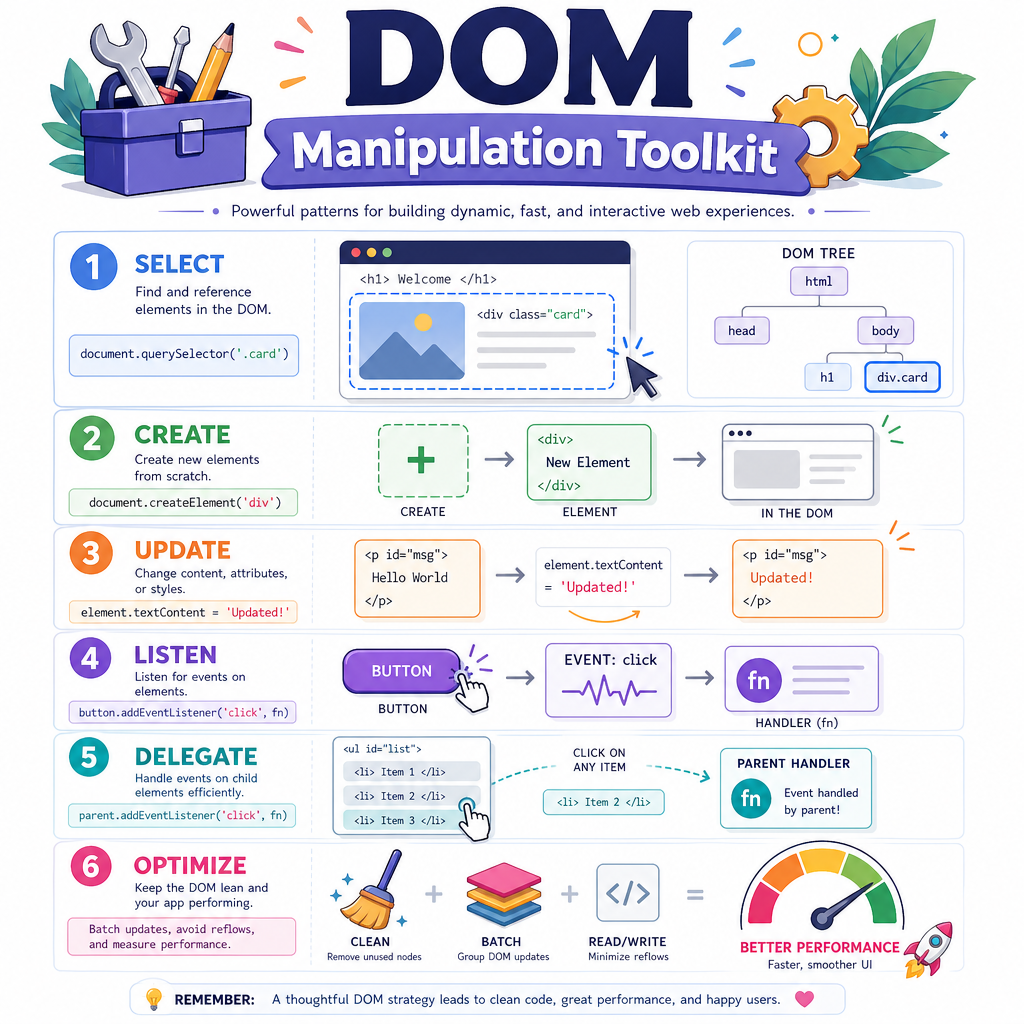
DOM Manipulation
Read at your own pace. Code execution, quizzes, progress tracking, and the AI tutor are available in the interactive view with JavaScript enabled.
From Values To Views
Why DOM manipulation matters
In Learning JavaScript Basics, you worked with values, bindings, functions, scope, and comparison rules. Now we’ll apply those tools to the thing frontend engineers are ultimately paid to shape: the page the user sees and touches.
The DOM — Document Object Model — is the browser’s structured representation of HTML. DOM manipulation is how JavaScript can:
- read what is currently on the page
- create, remove, or reorder interface pieces
- respond to clicks, typing, and other user actions
- keep UI state and visible UI in sync
Even if you mostly work in React, Vue, Svelte, or another framework, staff-level frontend interviews often probe whether you understand the browser underneath the abstraction. Frameworks are not magic; they eventually update the DOM too.
Think of this lesson as learning how to move pieces on the game board directly before we later talk about getting remote data with AJAX and Fetch API.

The DOM Tree
The page is a tree
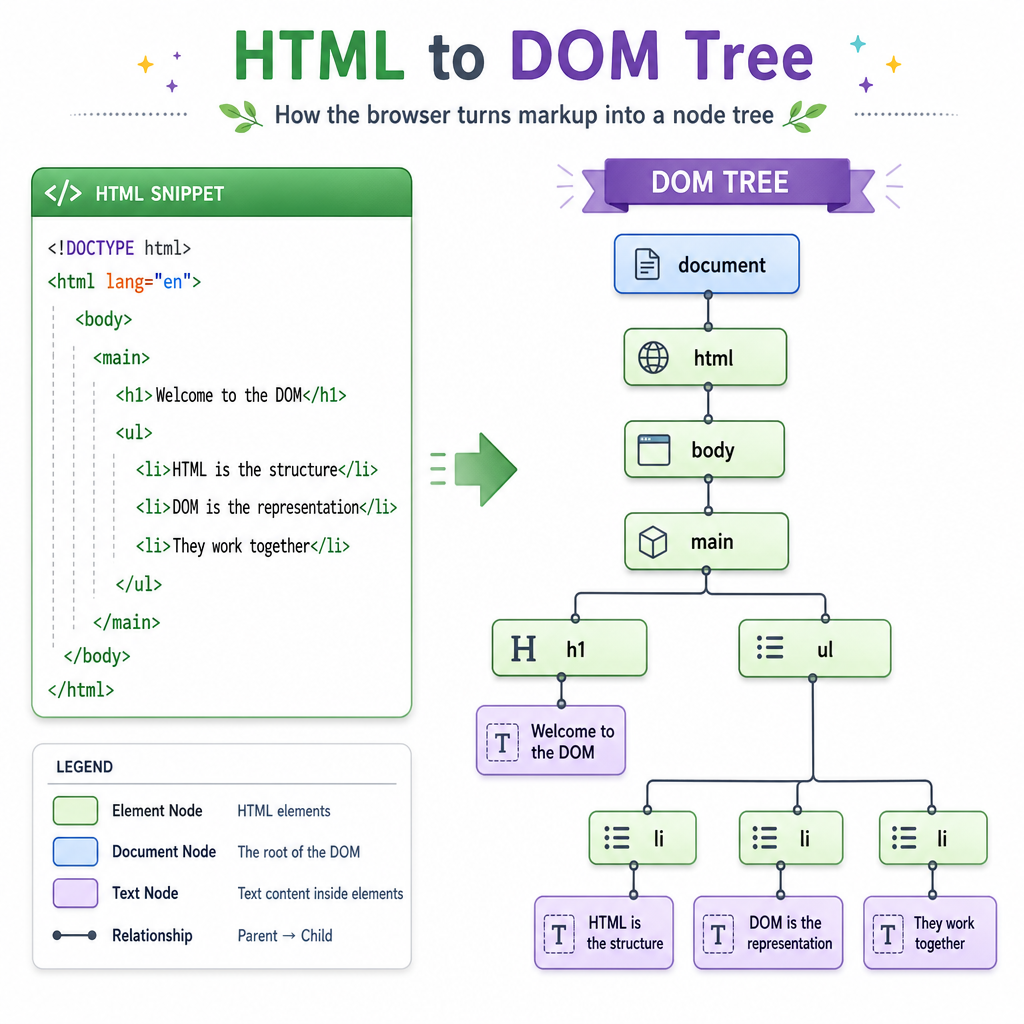
HTML text is parsed by the browser into a tree of objects called nodes. Elements, text, comments, and the document itself are all nodes.
A small page like this:
<main>
  <h1>Reading List</h1>
  <ul>
    <li>Dune</li>
    <li>Neuromancer</li>
  </ul>
</main>
becomes a shape like:
document
└── html
    └── body
        └── main
            ├── h1
            │   └── "Reading List"
            └── ul
                ├── li → "Dune"
                └── li → "Neuromancer"
Important mental model: you are not editing an HTML string most of the time. You are working with live objects representing page nodes.
That distinction matters because DOM objects have properties, methods, parent/child relationships, and event behavior.
Finding Page Elements
Query first, then act
Most DOM work starts by selecting an element or a group of elements.
Common tools:
-
document.querySelector(selector)returns the first matching element ornull -
document.querySelectorAll(selector)returns a static list of all matches -
element.querySelector(...)searches inside one subtree
Use CSS selector syntax, but do not turn this into a CSS lesson yet. For now, focus on the API shape: find the node, then inspect or change it.
Here’s a standalone browser-console example using a tiny action-movie watchlist.
```javascript
document.body.innerHTML = `
  <main id="app">
    <h1>Action Movie Night</h1>
    <ul class="watchlist">
      <li data-rating="5">Mad Max: Fury Road</li>
      <li data-rating="4">John Wick</li>
      <li data-rating="3">Speed</li>
    </ul>
  </main>
`;

const title = document.querySelector("h1");
const movies = document.querySelectorAll(".watchlist li");
const topPick = document.querySelector('[data-rating="5"]');

console.log(title.textContent);
console.log(movies.length);
console.log(topPick.textContent);
```
Selector Result Check
Given this DOM:
<section id="games">
  <button class="choice">Puzzle</button>
  <button class="choice featured">RPG</button>
</section>
What does document.querySelector(".choice") return?
Changing Nodes Safely
Text, attributes, and structure
Once you have a DOM node, you can update what the user sees.
Useful properties and methods:
-
textContentchanges text safely -
setAttribute(name, value)sets an attribute -
classList.add/remove/toggle(...)changes class tokens -
append(...)inserts nodes or text at the end -
remove()deletes a node
Prefer textContent when inserting plain text. It treats content as text, not HTML, which is safer and usually clearer.
Below, we build a tiny reading queue and log the final visible result.
```javascript
document.body.innerHTML = `
  <section id="library">
    <h1>Reading Queue</h1>
    <ul id="books"></ul>
  </section>
`;

const books = document.querySelector("#books");

const item = document.createElement("li");
item.textContent = "The Long Way to a Small, Angry Planet";
item.setAttribute("data-status", "next-up");
item.classList.add("book", "priority");

books.append(item);

console.log(books.children.length);
console.log(books.firstElementChild.textContent);
console.log(books.firstElementChild.getAttribute("data-status"));
```
HTML Injection Swipe
True or false: if a value comes from a user, it is always safe to insert it into the page with element.innerHTML = value.
Events Wire Interaction
DOM changes become useful with events
A static DOM update is like placing pieces on a puzzle board. Events let the user move them.
The core pattern:
- Select or create an element
- Attach an event listener
- In the handler, read state and update the DOM
For many repeated elements, use event delegation: attach one listener to a parent and inspect where the event came from. This avoids wiring dozens of individual listeners and handles future child elements naturally.
This example uses one listener for multiple reality-show elimination buttons.
```javascript
document.body.innerHTML = `
  <section id="show">
    <h1>Elimination Board</h1>
    <button data-contestant="Ava">Eliminate Ava</button>
    <button data-contestant="Milo">Eliminate Milo</button>
    <p id="result">No one eliminated yet.</p>
  </section>
`;

const show = document.querySelector("#show");
const result = document.querySelector("#result");

show.addEventListener("click", function handleClick(event) {
  const button = event.target.closest("button[data-contestant]");

  if (!button) return;

  result.textContent = `${button.dataset.contestant} has left the villa.`;
  console.log(result.textContent);
});

// Simulate a user click so this standalone example prints output.
document.querySelector('[data-contestant="Milo"]').click();
```
Listener Method Blank
Fill in the blank with the DOM method name:
element.________("click", handler)
Mutation Cost Matters
DOM work has a cost
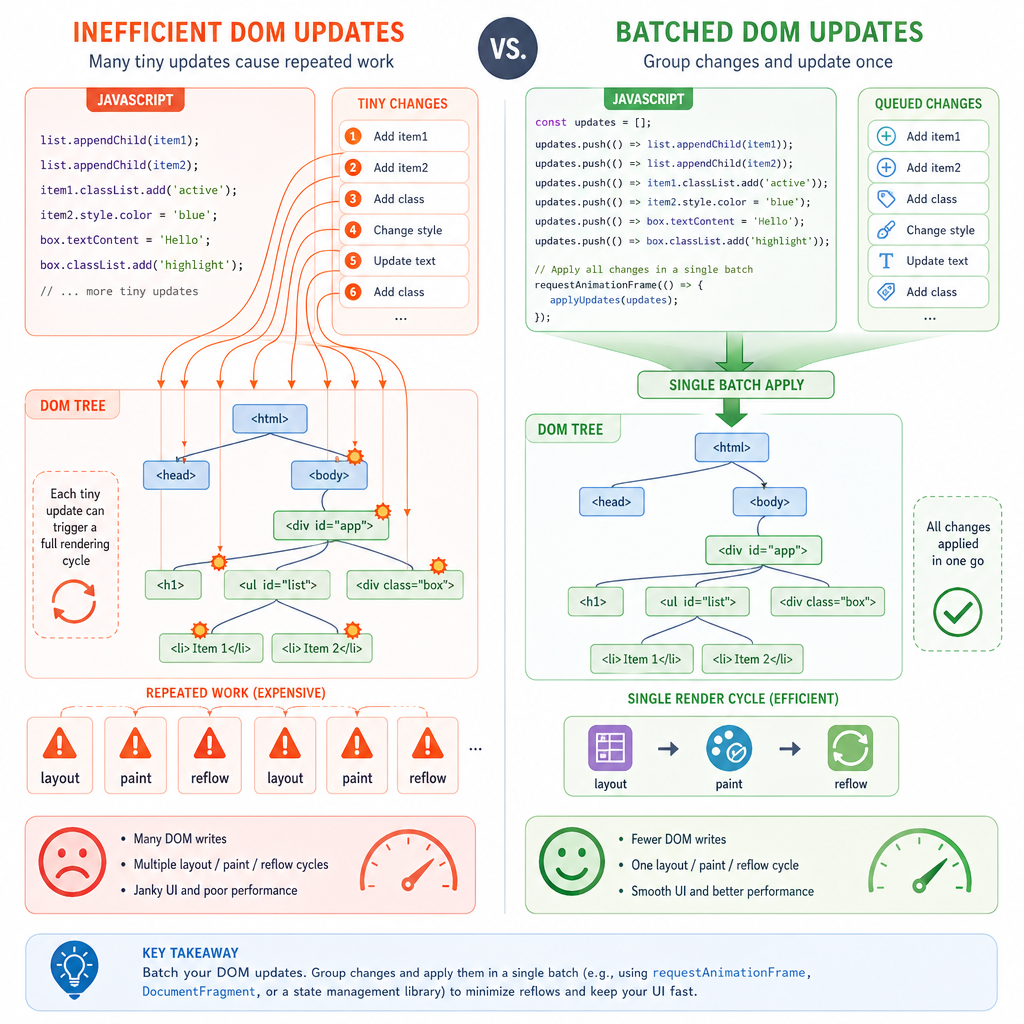
DOM manipulation is powerful, but it is not free. The browser may need to recalculate layout, repaint pixels, or rebuild accessibility information after changes.
For small interfaces, this usually does not matter. For staff-level frontend work, you should know the shape of efficient mutation patterns.
Prefer:
- Batch changes: build several nodes, then attach them together
-
Minimize layout thrashing: avoid alternating reads like
offsetHeightwith writes like changing classes in tight loops - Use stable parent containers: update the smallest subtree you can
- Keep state separate from DOM when complexity grows: let DOM reflect state rather than becoming your only source of truth
A helpful rule: make the browser do fewer big, predictable updates instead of many tiny surprising ones.
This is one reason frameworks exist, but the underlying browser cost model still matters when debugging janky UIs, long tasks, or slow interaction response.
DOM Mastery Checklist
What you should carry forward
You now have the browser-level tools to turn JavaScript values into visible, interactive UI.
Before moving on, make sure you can explain and use:
- The DOM as a tree of live objects, not just an HTML string
-
querySelectorvsquerySelectorAll - Creating elements with
document.createElement - Updating text with
textContent - Setting attributes and classes intentionally
- Adding event listeners with
addEventListener - Using event delegation for repeated interactive children
- Avoiding unsafe
innerHTMLfor untrusted text - Thinking about performance when doing many mutations
This lesson sits directly after Learning JavaScript Basics because DOM APIs rely on the same fundamentals: values, functions, scope, and equality checks. Next, AJAX and Fetch API will add remote data to the picture; DOM manipulation is how that data eventually becomes UI.