Project Setup and Version Control
Read at your own pace. Code execution, quizzes, progress tracking, and the AI tutor are available in the interactive view with JavaScript enabled.
Course Starting Point
Why setup comes first
Real-time Java projects are not just about writing classes. They are about building code that another developer can clone, run, inspect, modify, and trust.
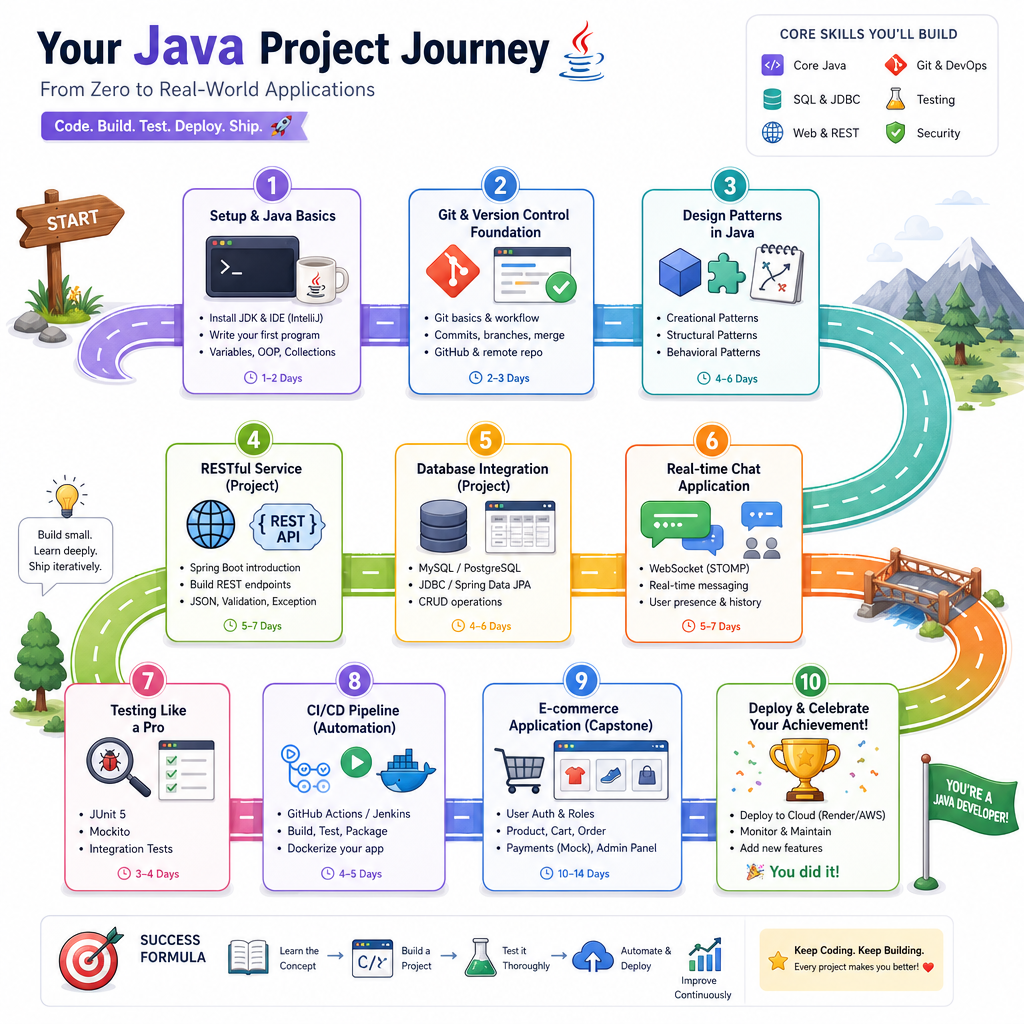
In this first lesson, we will establish the baseline used throughout the course:
- A predictable Java project structure
- A repeatable local development setup
- Git version control habits that protect your work
- A lightweight source-code checklist before the bigger projects begin
Later lessons will build REST services, persistence, chat, testing, CI/CD, and an e-commerce platform. Those only work well if the project foundation is clean.
Development Baseline
Pick versions deliberately
For this course, assume a modern Java setup:
- JDK 17+ for long-term support and modern language features
- Maven or Gradle for builds and dependency management
- Git for version control
- An IDE such as IntelliJ IDEA, Eclipse, or VS Code
A common real-world mistake is saying, "It works on my machine," without knowing what "my machine" actually means. Start every project by making the runtime visible.
The small Java program below prints environment details. This is not an application feature; it is a setup sanity check.
```java
public class EnvironmentCheck {
    public static void main(String[] args) {
        System.out.println("Java Project Environment Check");
        System.out.println("------------------------------");
        System.out.println("Java version: " + System.getProperty("java.version"));
        System.out.println("Java vendor : " + System.getProperty("java.vendor"));
        System.out.println("OS name     : " + System.getProperty("os.name"));
        System.out.println("User dir    : " + System.getProperty("user.dir"));
    }
}
```
Project Skeleton
Use a conventional layout
Most professional Java projects are organized so tools, teammates, and automation can understand them without special explanation.
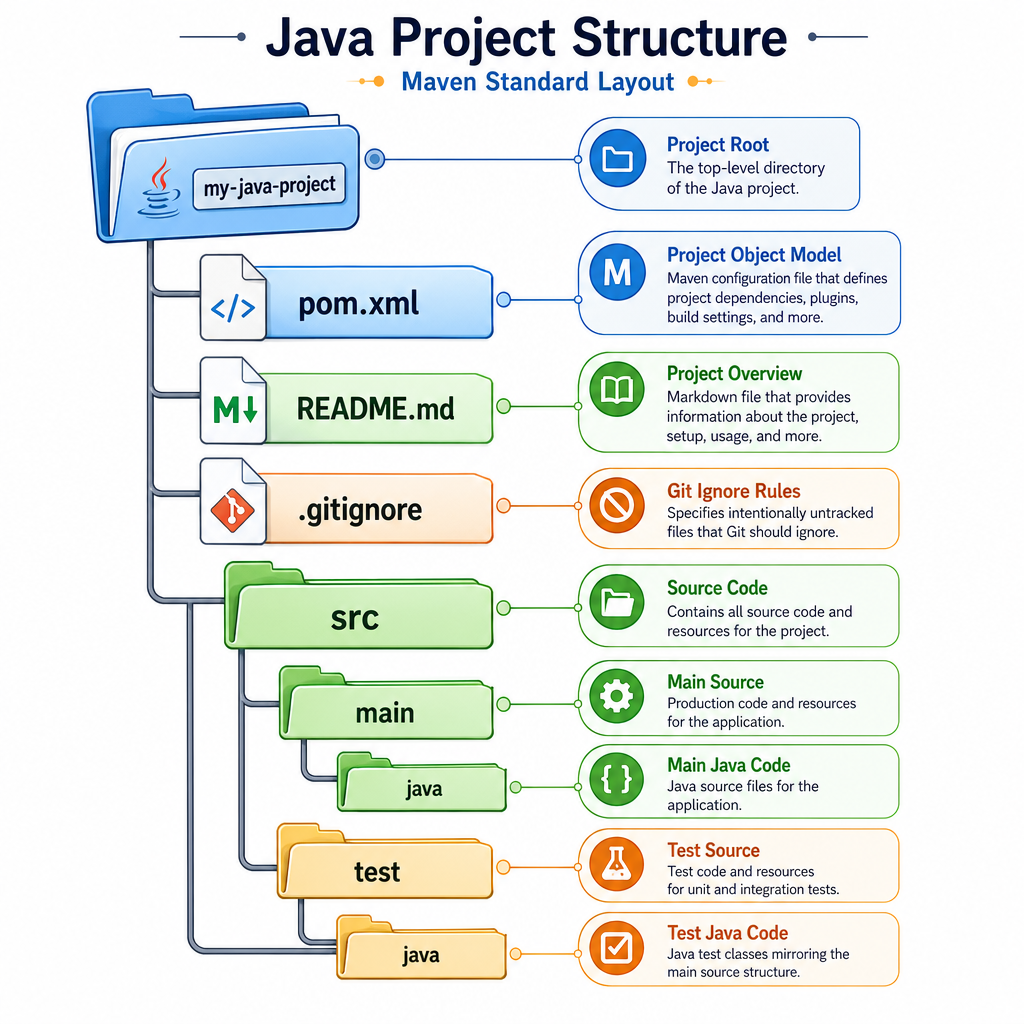
A typical Maven-style layout looks like this:
real-time-java-project/
├── pom.xml
├── README.md
├── .gitignore
└── src/
    ├── main/
    │   └── java/
    │       └── com/example/app/
    └── test/
        └── java/
            └── com/example/app/
Key idea: source code, tests, build metadata, and documentation each have a home.
Even if you later use Gradle instead of Maven, the same principle holds: organize for readability, automation, and growth.
Dependency File
In a Maven-based Java project, which file primarily defines project metadata, plugins, and dependencies?
First Runnable Class
Keep the first run boring
Before architecture, frameworks, databases, or APIs, make sure the project can run one small Java entry point.
A first runnable class should answer:
- Can the compiler find my code?
- Can the runtime execute it?
- Can I print useful startup information?
This tiny class acts like a heartbeat for the project.
```java
import java.time.LocalDateTime;

public class ProjectBanner {
    public static void main(String[] args) {
        String projectName = "Real Time Java Projects";
        String version = "0.1.0-setup";

        System.out.println("================================");
        System.out.println("Project : " + projectName);
        System.out.println("Version : " + version);
        System.out.println("Started : " + LocalDateTime.now());
        System.out.println("Status  : setup verified");
        System.out.println("================================");
    }
}
```
Git Working Loop
Version control is a project habit
Git is not just a backup tool. In real projects, it is the record of design decisions, bug fixes, experiments, and collaboration.
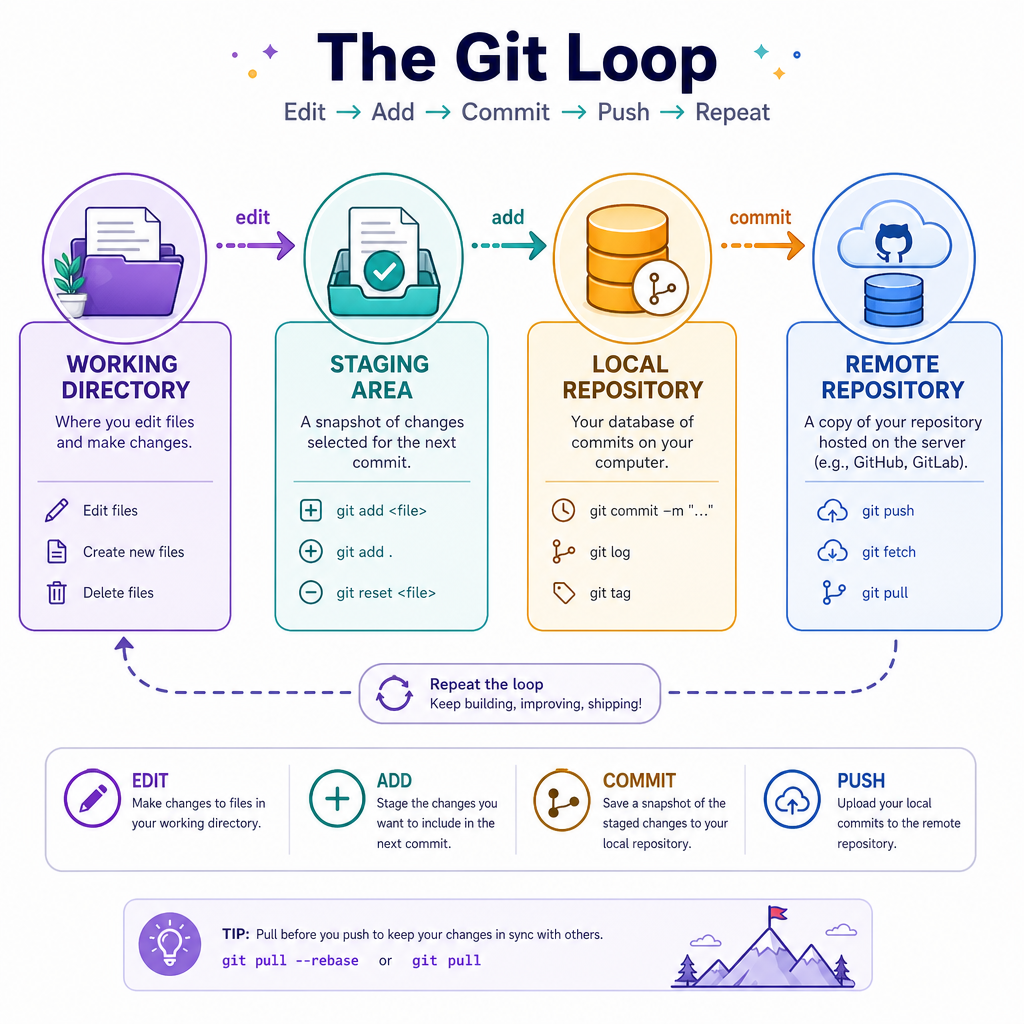
A practical beginner workflow:
- Create or clone the repository
- Create a small branch for one task
- Change a small set of files
- Review the diff
- Commit with a meaningful message
- Push when the work is ready to share
Example command flow:
git init
git status
git switch -c feature/project-setup
git add README.md pom.xml src/
git commit -m "Initialize Java project structure"
Small commits make debugging and code review much easier later.
Generated Files
True or false: A Java project's generated build output directory, such as target/, should usually be committed to Git.
Create Branch
Complete the Git command to create and switch to a new branch named feature/setup:
git switch __ feature/setup
Fill in the blank: _____________
Repo Hygiene
Make the repository explain itself
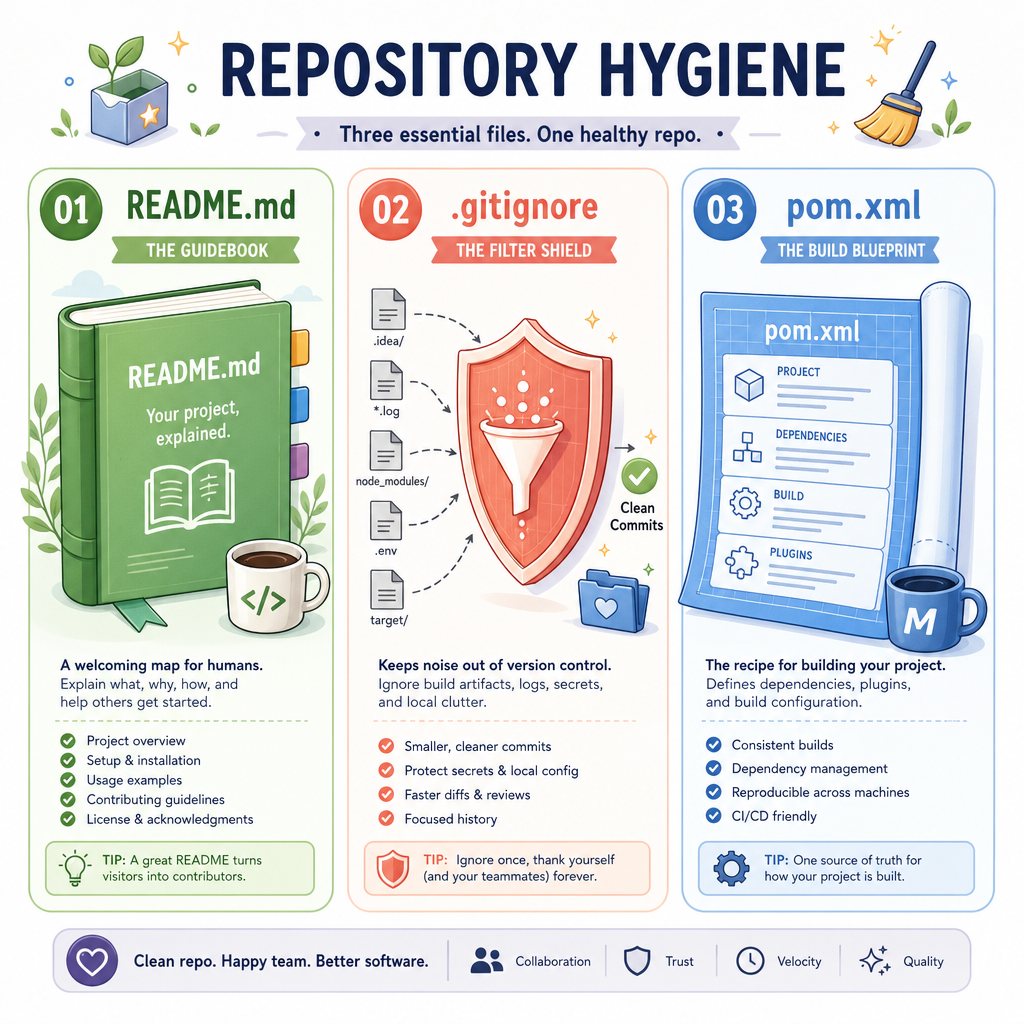
A usable real-time project should include at least three non-code files early:
README.md
Explains what the project is, how to run it, and what stage it is in.
.gitignore
Prevents generated files, IDE metadata, logs, and local secrets from entering source control.
Common Java ignores include:
target/
build/
*.class
*.log
.env
.idea/
.vscode/
Build file
For Maven, this is pom.xml. It should define the Java version and dependencies clearly.
Good repository hygiene reduces onboarding time and prevents accidental leaks.
Setup Smoke Test
Add a simple project self-check
Before moving into design and application features, it helps to run a small smoke test that checks the expected project structure.
In a real repository, this idea can evolve into automated tests and CI checks. For now, keep it simple: verify that the important project files and folders exist.
The following standalone program creates a temporary sample structure, checks it, and prints a setup report.
```java
import java.io.IOException;
import java.nio.file.Files;
import java.nio.file.Path;
import java.util.List;

public class ProjectSetupSmokeTest {
    public static void main(String[] args) throws IOException {
        Path root = Files.createTempDirectory("java-project-setup-");

        List<Path> expectedPaths = List.of(
                root.resolve("pom.xml"),
                root.resolve("README.md"),
                root.resolve(".gitignore"),
                root.resolve("src/main/java"),
                root.resolve("src/test/java")
        );

        Files.createFile(root.resolve("pom.xml"));
        Files.createFile(root.resolve("README.md"));
        Files.createFile(root.resolve(".gitignore"));
        Files.createDirectories(root.resolve("src/main/java"));
        Files.createDirectories(root.resolve("src/test/java"));

        System.out.println("Project setup smoke test");
        System.out.println("Root: " + root);

        boolean allPresent = true;
        for (Path path : expectedPaths) {
            boolean exists = Files.exists(path);
            System.out.println((exists ? "PASS " : "FAIL ") + root.relativize(path));
            allPresent = allPresent && exists;
        }

        System.out.println("Result: " + (allPresent ? "setup looks good" : "setup needs attention"));
    }
}
```
Next Step
Foundation complete
You now have the mental model for starting Java projects professionally:
- Know your runtime environment
- Use a conventional project structure
- Keep the first runnable code simple
- Track changes with Git branches and commits
- Ignore generated or local-only files
- Document how the project is meant to run
In the next lesson, Design Patterns in Java, we will start shaping code so that project structure and object design work together instead of fighting each other.