Version Control with Git
Read at your own pace. Code execution, quizzes, progress tracking, and the AI tutor are available in the interactive view with JavaScript enabled.
Why Git Now
Version Control Is Your Project's Time Machine
Now that you've covered Introduction to JavaScript, Asynchronous JavaScript, React Basics, Responsive Web Design, and CSS Animation, you can build meaningful frontend features. The next staff-level skill is making those changes safe, reviewable, reversible, and collaborative.
Git is not just a place to save code. It is how teams answer questions like:
- What changed between the working animation yesterday and the broken one today?
- Which React state refactor introduced this bug?
- Can we ship the responsive layout fix without also shipping the unfinished modal?
- How do three engineers edit the same codebase without turning it into reality TV chaos?
At staff level, Git fluency is less about memorizing commands and more about understanding the shape of change: commits, branches, history, reviews, and recovery.
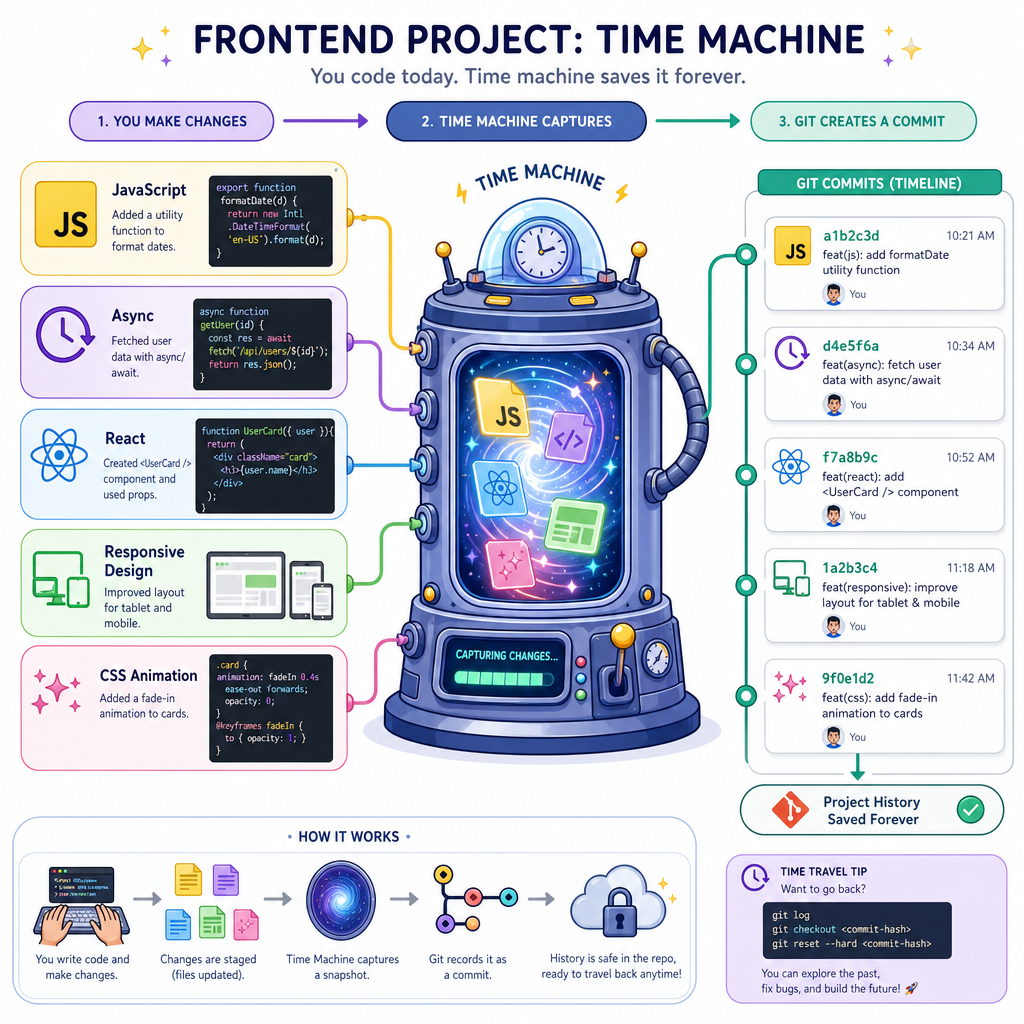
Repository Mental Model
Git Tracks a Project, Not Just Files
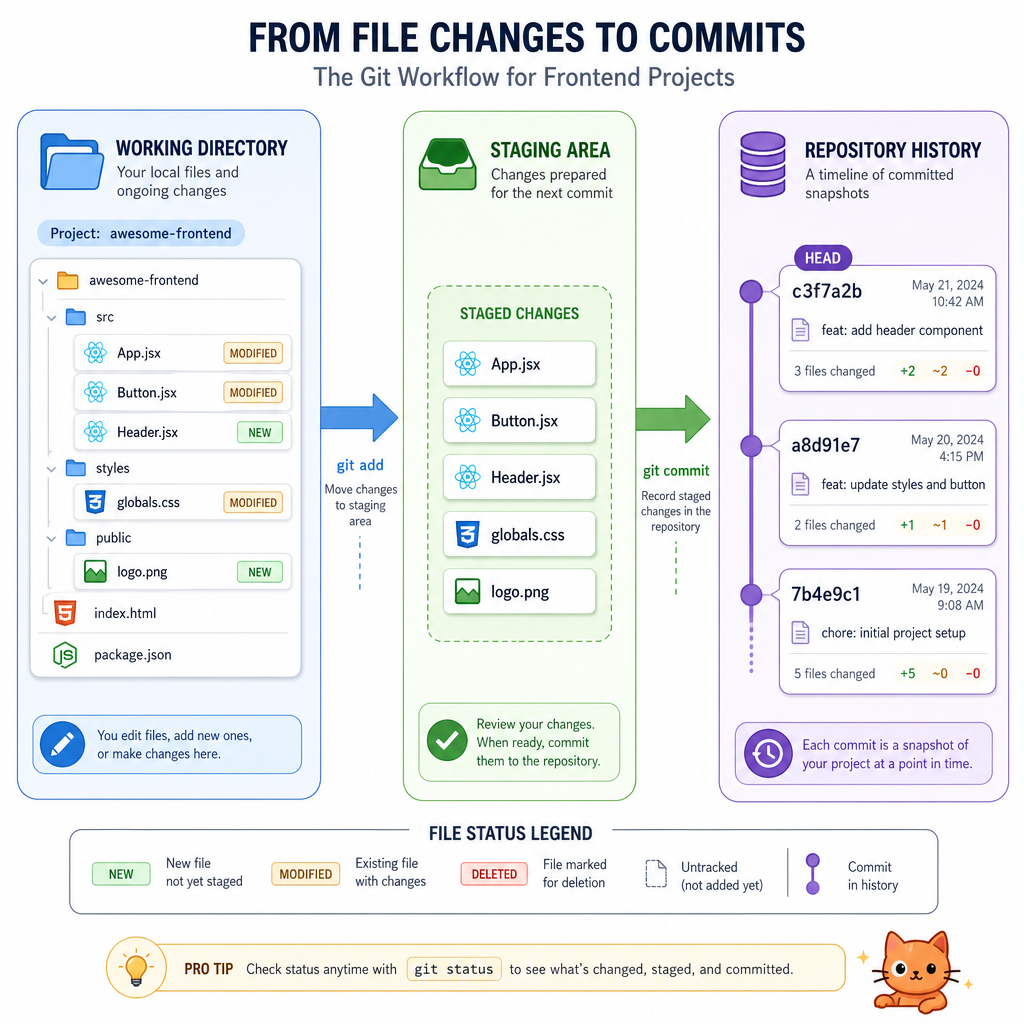
A repository, or repo, is a project plus its history. In frontend work, that might include your src/ directory, components, styles, tests, package files, and configuration.
A useful mental model:
working directory  ->  staging area  ->  repository history
 edits you make        changes chosen     committed snapshots
Three important zones:
- Working directory: your current files on disk.
- Staging area: a deliberate selection of changes for the next commit.
- Repository history: the chain of saved commits.
This separation is powerful. You might edit a React component, a CSS animation, and a README, but only stage the component fix for one focused commit.
Common commands map to the zones:
-
git status: what changed? -
git add <file>: move selected changes into staging. -
git commit -m "message": save staged changes into history. -
git log: inspect history.
Commits Are Snapshots
A Commit Freezes a Useful Moment
A commit is a saved snapshot of your project at a point in time. Think of it like a puzzle checkpoint: not every tiny hand movement deserves a checkpoint, but each meaningful solved section does.
Good commits are:
- Focused: one idea, fix, or refactor.
- Descriptive: the message explains intent, not just files changed.
- Reviewable: small enough that another engineer can reason about it.
- Reversible: if needed, the team can undo it without losing unrelated work.
For staff interviews, this matters because reviewers often look for engineering judgment. A giant commit named updates says less than a sequence like:
fix mobile nav overflowextract useDebouncedSearch hookadd empty state for search results
```javascript
const commits = [
  { id: "a1b2", message: "create responsive movie card layout", files: 4 },
  { id: "c3d4", message: "add hover transition for poster art", files: 2 },
  { id: "e5f6", message: "fix keyboard focus style", files: 1 }
];

console.log("Project history:");
for (const commit of commits) {
  console.log(`${commit.id}: ${commit.message} (${commit.files} files changed)`);
}

const latest = commits.at(-1);
console.log(`Latest checkpoint: ${latest.message}`);
```
Staging Checkpoint
You edited three files: MovieCard.jsx, animations.css, and README.md. You only want the next commit to contain the bug fix in MovieCard.jsx.
Which action best matches Git's staging model?
Branches Enable Experiments
Branches Let Work Happen in Parallel
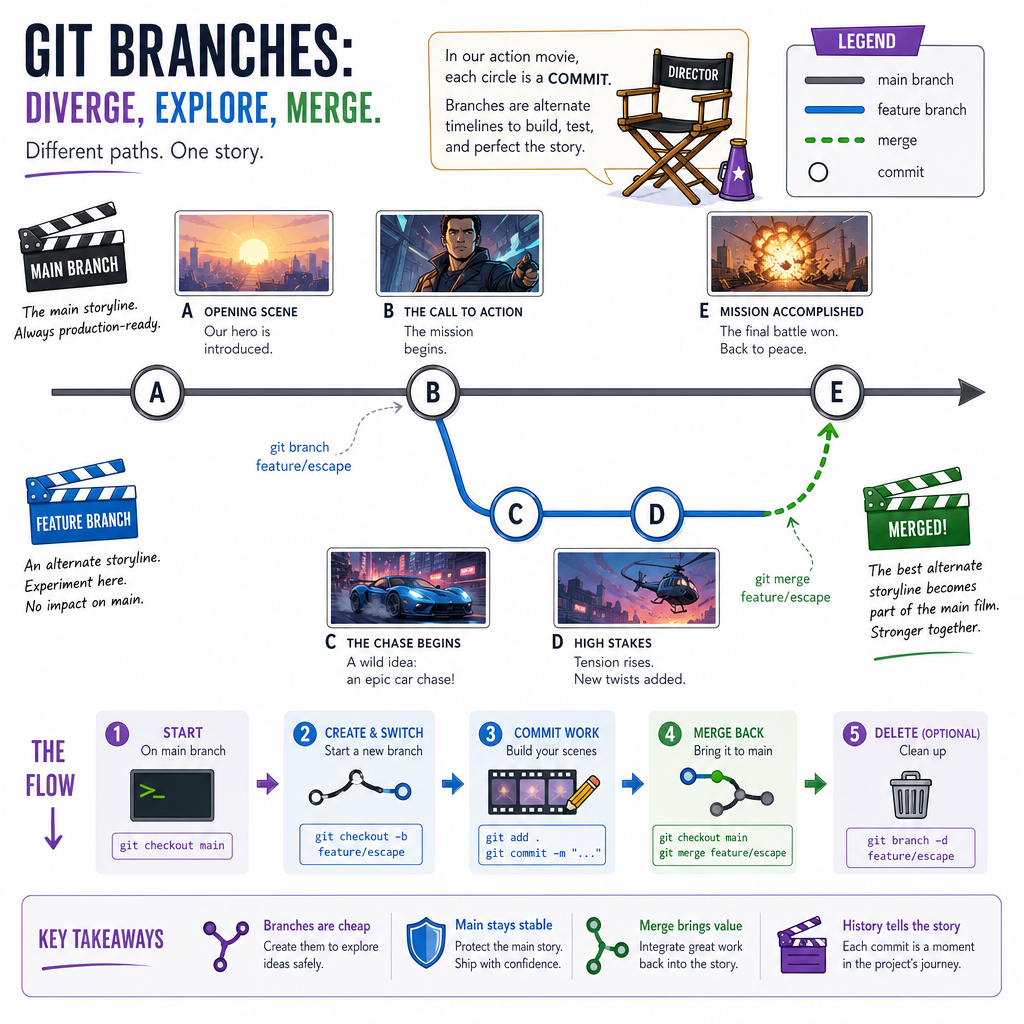
A branch is a movable pointer to a commit. It lets you develop a feature, fix, or experiment without disturbing the main line of work.
A simplified history might look like this:
main:      A --- B --- C
                    \
feature:              D --- E
In frontend teams, branches are useful for:
- Building a new React component while
mainstays deployable. - Trying a CSS animation idea without forcing it on everyone.
- Fixing a production bug while larger feature work continues elsewhere.
Common branch commands:
-
git branch: list branches. -
git switch -c feature/movie-card: create and switch to a new branch. -
git switch main: return tomain. -
git merge feature/movie-card: bring branch work into the current branch.
A branch is not a copy of the whole project. It is more like a timeline pointer in an action movie: one decision creates a new path, and Git records how that path evolves.
Branch Command
Fill in the missing Git command to create and switch to a new branch named feature/search-filters:
git switch -c ______
Remote Collaboration Loop
Local Git Meets Shared Git
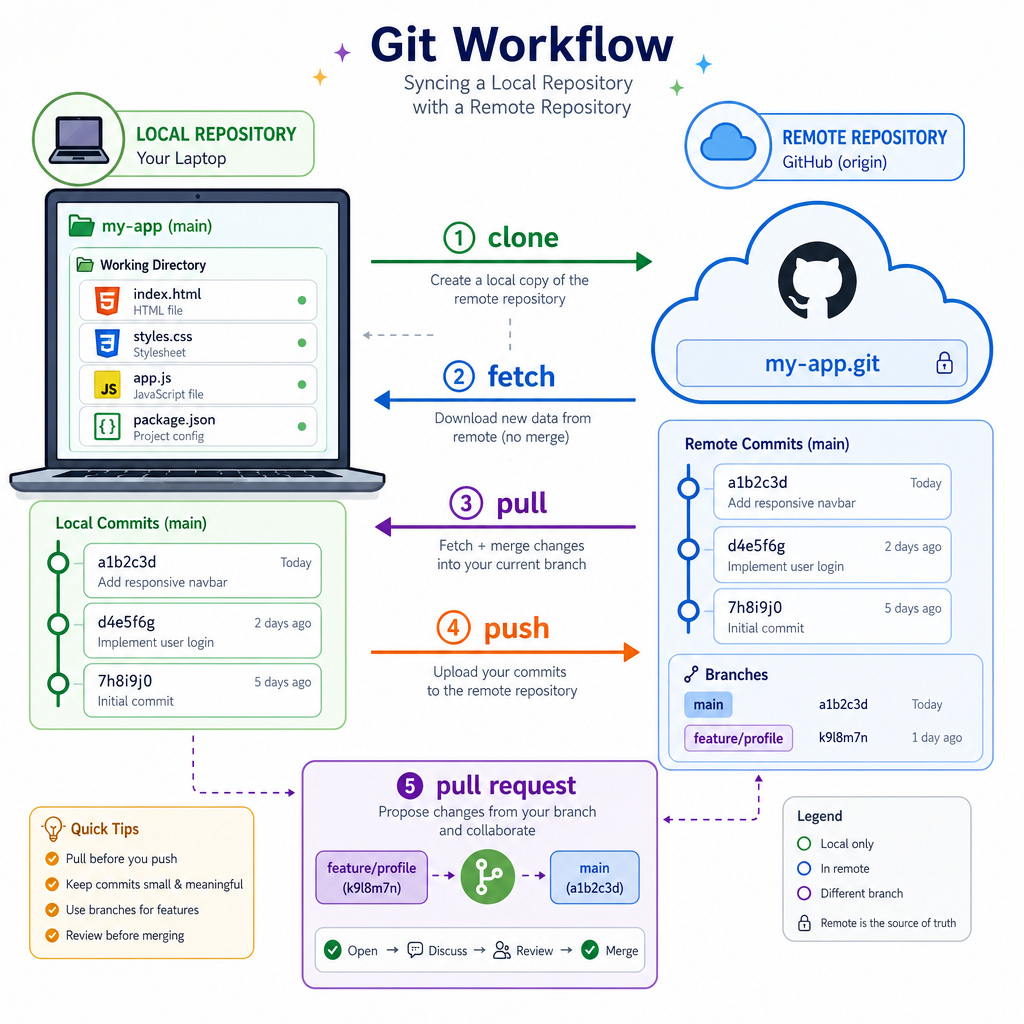
Git runs locally, but teams usually share work through a remote host such as GitHub, GitLab, or Bitbucket.
Key terms:
-
remote: a named connection to another copy of the repo, often
origin. - clone: copy a remote repo locally.
- fetch: download remote history without merging it into your current work.
- pull: fetch plus integrate remote changes.
- push: upload your local commits to the remote.
- pull request / merge request: propose branch changes for review.
A typical frontend workflow:
- Start from updated
main. - Create a feature branch.
- Make focused commits.
- Push the branch.
- Open a pull request.
- Discuss, revise, and merge.
For staff-level work, the pull request is not paperwork. It is where architecture, maintainability, accessibility concerns, test strategy, and release risk become visible to the team.
Conflicts Are Conversations
Merge Conflicts Mean Git Needs a Human
A merge conflict happens when Git cannot safely combine changes. This is common when two branches edit the same nearby lines.
Git may insert markers like:
<<<<<<< HEAD=======>>>>>>> feature-branch
These markers are not the final code. They are Git asking: "Which version should survive, or how should they be combined?"
A mature conflict workflow:
- Read both sides.
- Understand the intent of each change.
- Edit the file into the correct final version.
- Remove conflict markers.
- Run tests or the app.
- Stage and commit the resolution.
Do not treat conflicts as purely mechanical. If one branch changed component state behavior and another changed responsive layout, the correct resolution may require both perspectives.
```javascript
const conflictedFile = `
function buttonLabel(isSaving) {
<<<<<<< HEAD
  return isSaving ? "Saving..." : "Save";
=======
  return isSaving ? "Posting..." : "Post";
>>>>>>> feature/social-copy
}
`;

const hasConflictMarkers = conflictedFile.includes("<<<<<<<") ||
  conflictedFile.includes("=======") ||
  conflictedFile.includes(">>>>>>>");

console.log(`Conflict markers found: ${hasConflictMarkers}`);

const resolvedFile = `
function buttonLabel(isSaving) {
  return isSaving ? "Saving..." : "Post";
}
`;

console.log("Resolved version:");
console.log(resolvedFile.trim());
```
Pull Before Push
True or false: If your local branch is behind the remote branch, pushing immediately is always safe because Git will overwrite the remote history with your local commits.
Staff Git Habits
Git Fluency Shows Engineering Judgment
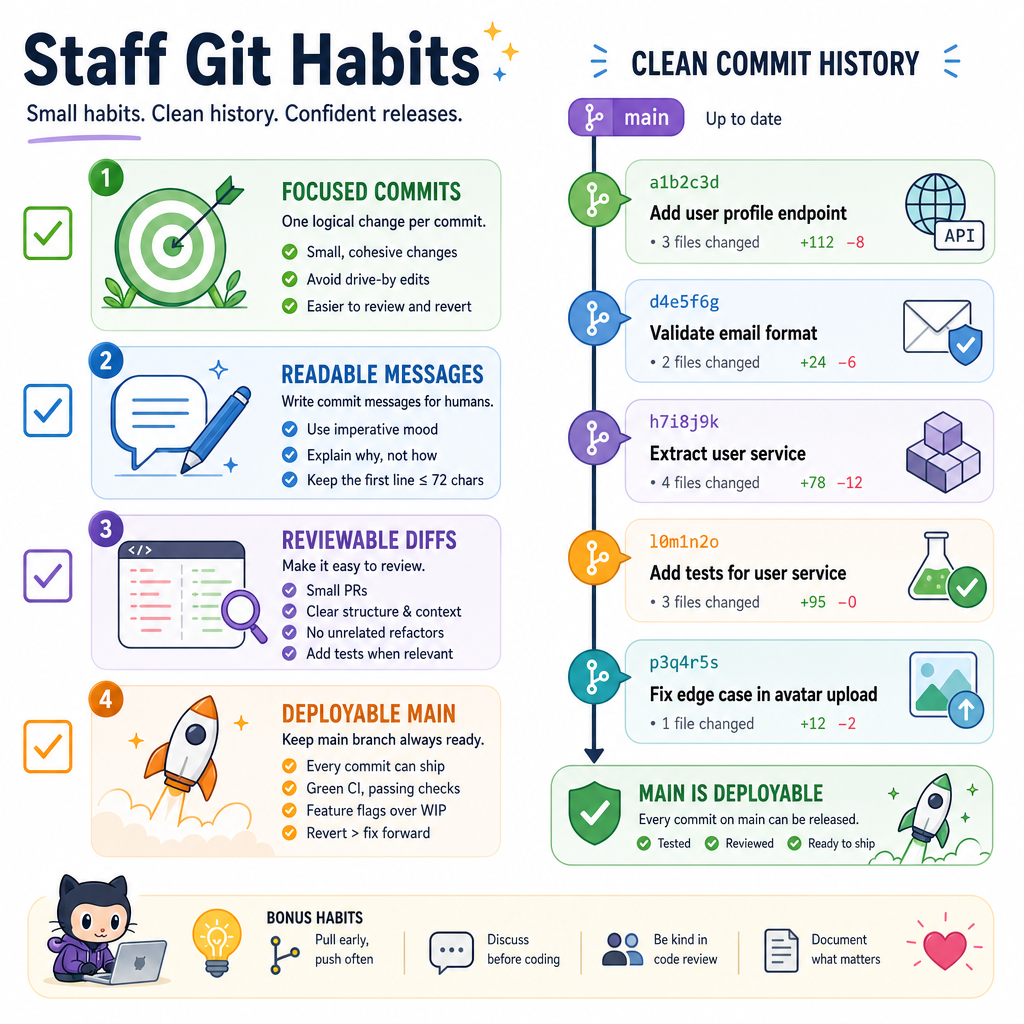
At senior and staff levels, Git habits influence team speed. You are not just saving your own work; you are creating a readable history for future debugging, onboarding, incident review, and release planning.
Strong habits:
- Commit small, meaningful units of work.
- Use messages that explain intent:
fix focus trap in modal, notstuff. - Keep
maindeployable. - Pull or fetch before starting new work.
- Review diffs before committing.
- Avoid mixing formatting churn with logic changes unless intentional.
- Use pull requests to make tradeoffs visible.
A practical message pattern:
verb + specific object + reason when helpful
Examples:
fix carousel keyboard navigationextract responsive grid utilitiesremove unused animation keyframes
Next, Introduction to UX Design will shift from tracking code changes to thinking about whether the experience itself solves the right user problem.
```javascript
const messages = [
  "updates",
  "fix mobile nav overflow",
  "stuff",
  "extract useMovieSearch hook",
  "remove unused fade keyframes"
];

function scoreCommitMessage(message) {
  const hasSpace = message.trim().includes(" ");
  const vagueWords = ["stuff", "updates", "changes", "misc"];
  const isVague = vagueWords.includes(message.toLowerCase());
  return hasSpace && !isVague ? "reviewable" : "too vague";
}

for (const message of messages) {
  console.log(`"${message}" -> ${scoreCommitMessage(message)}`);
}
```